Webmail is currently unavailable • Details »
If your spam filter is working correctly, 99% of incoming spam should be automatically flagged and moved to your spam folder. But what if you’re receiving high volumes of spam due to a past data breach or AI-powered spam bots flooding your spam folder? The extra volume of spam makes finding any legitimate emails that were flagged as junk almost impossible.
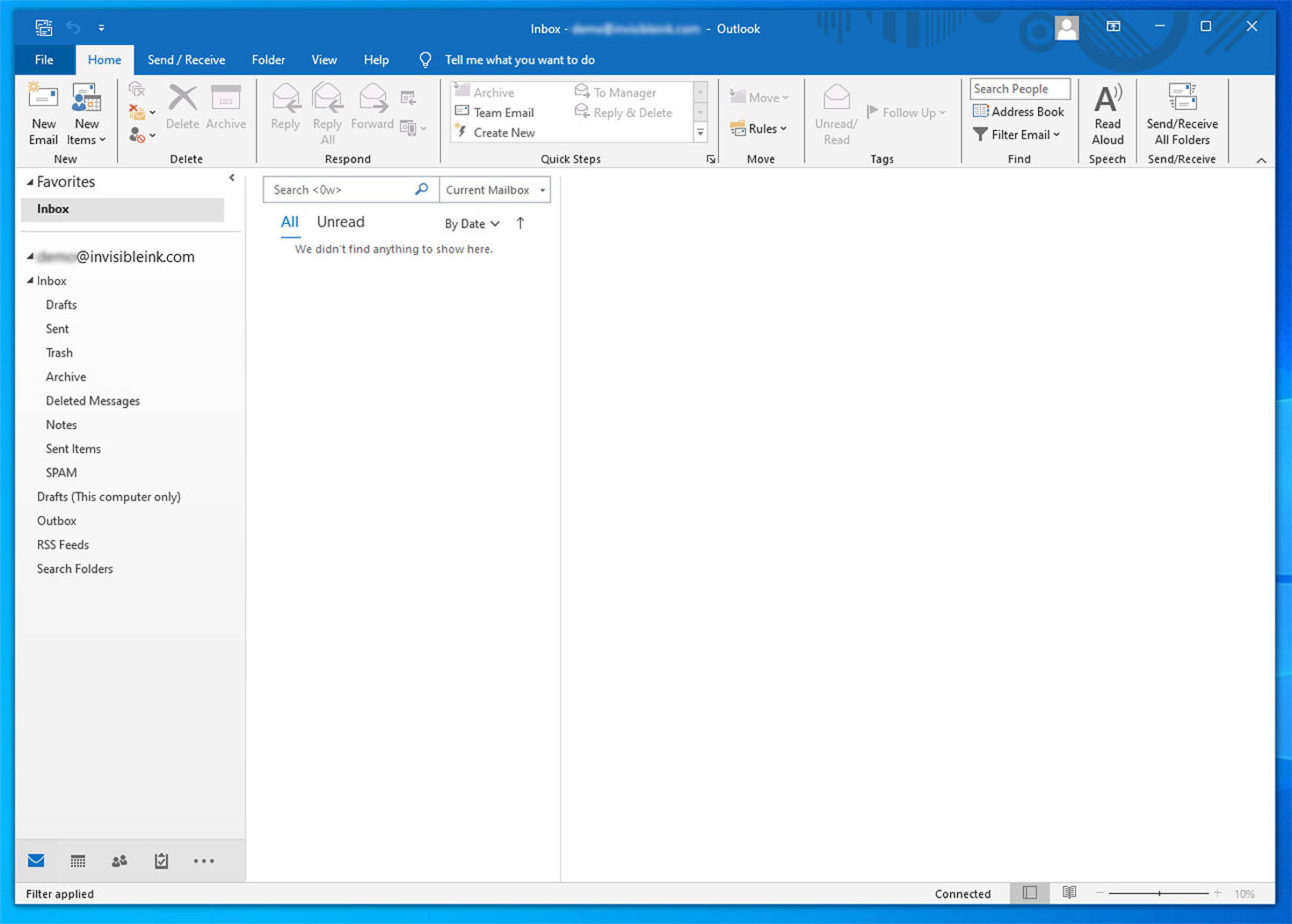
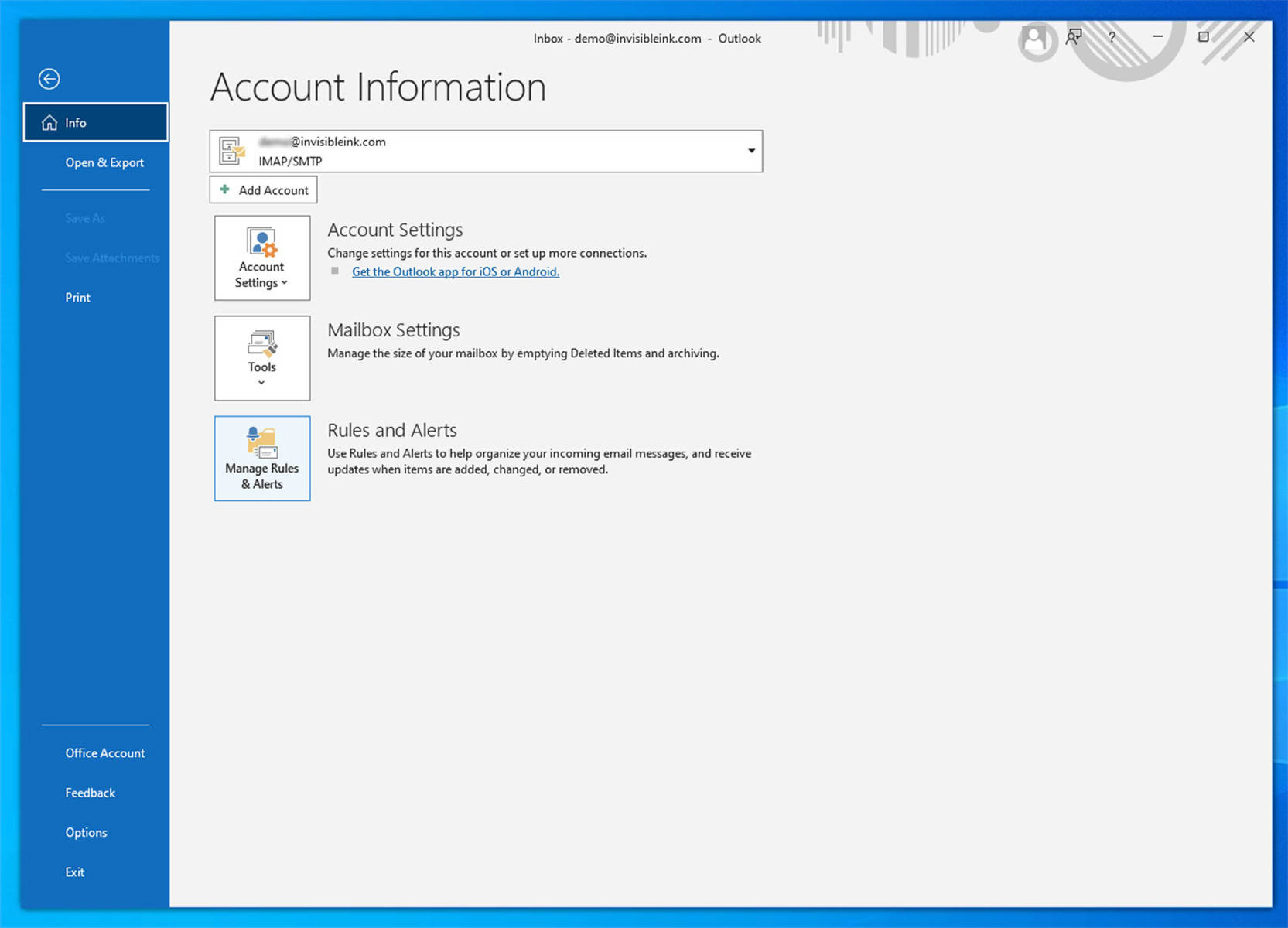
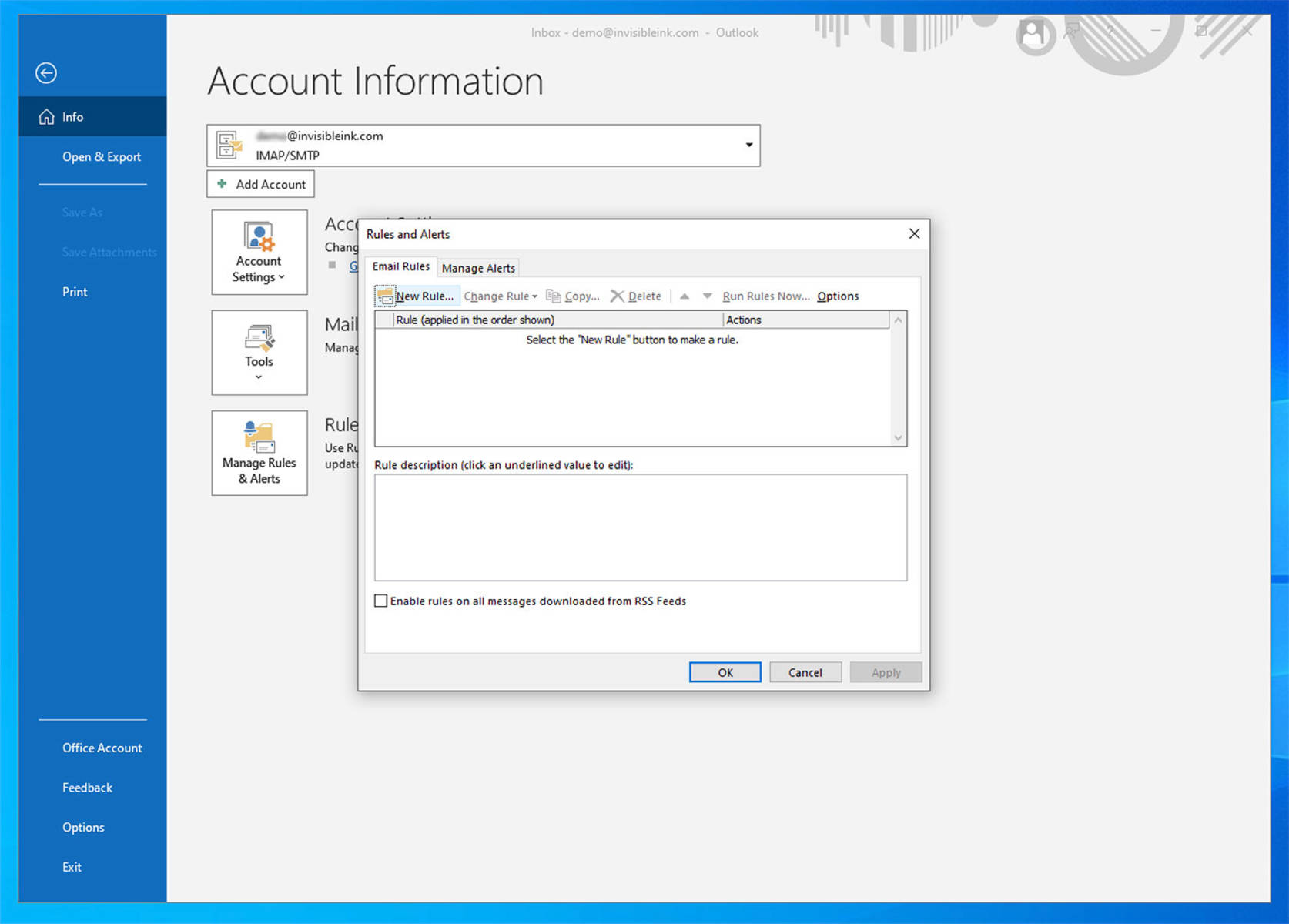
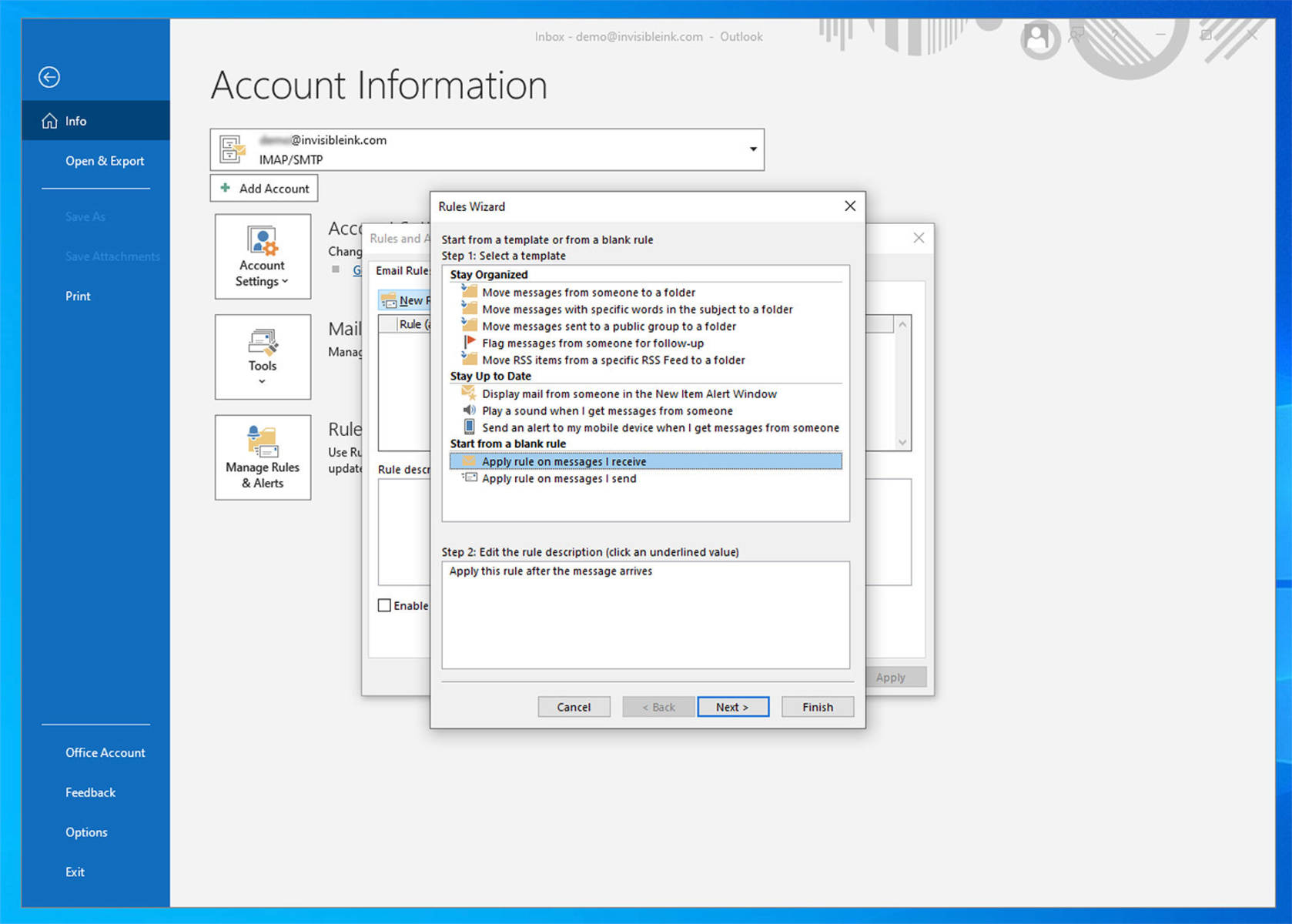
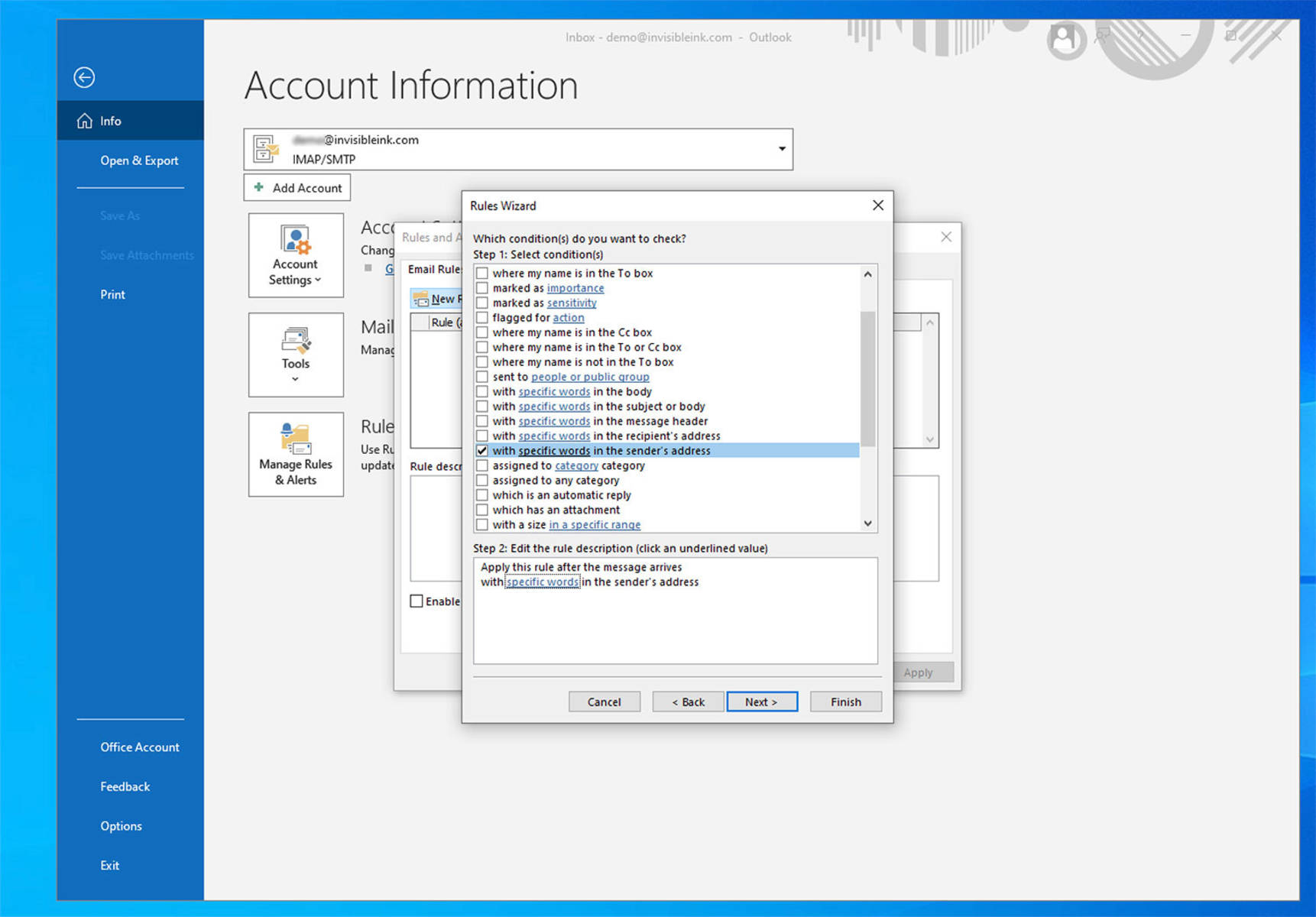
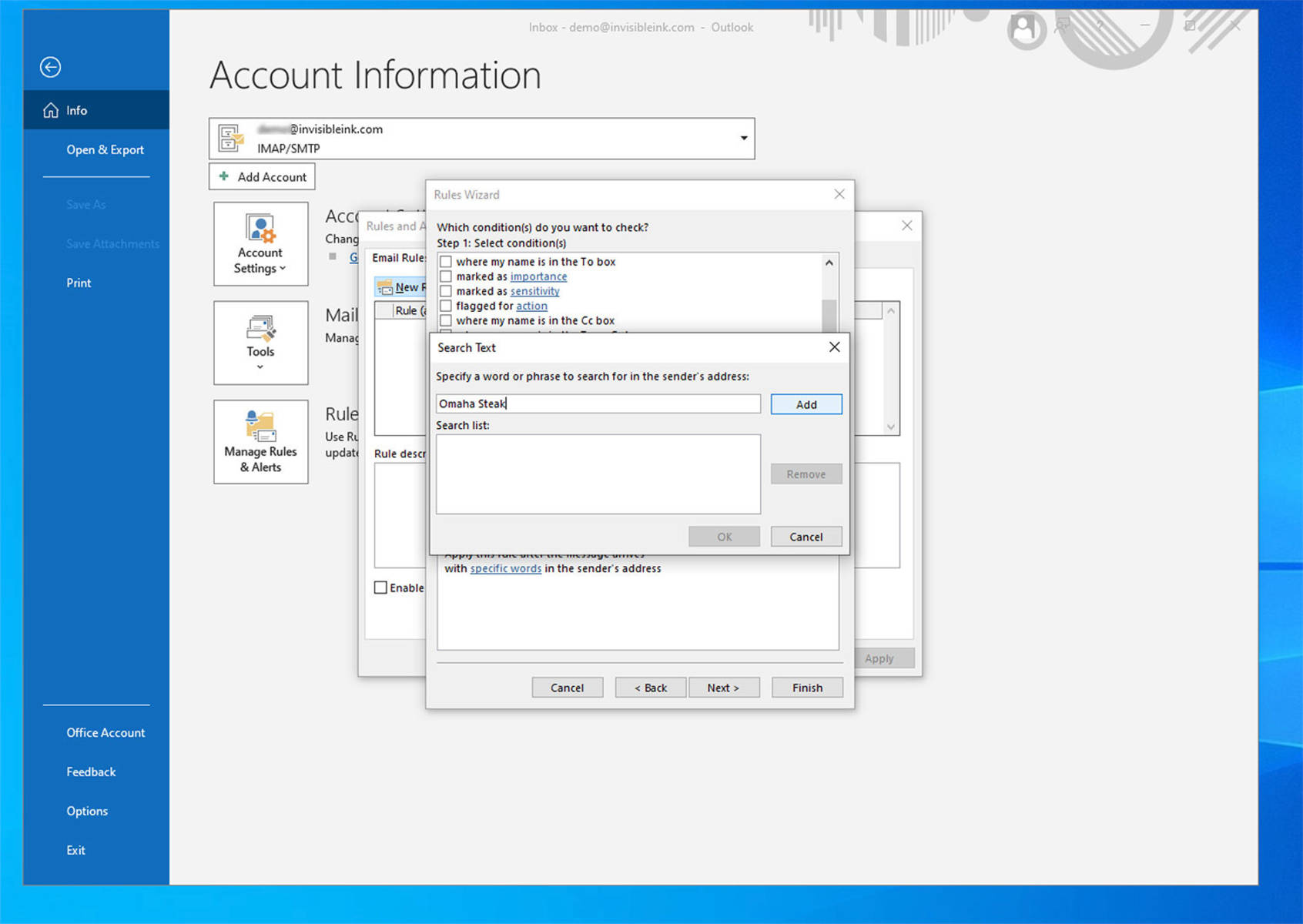
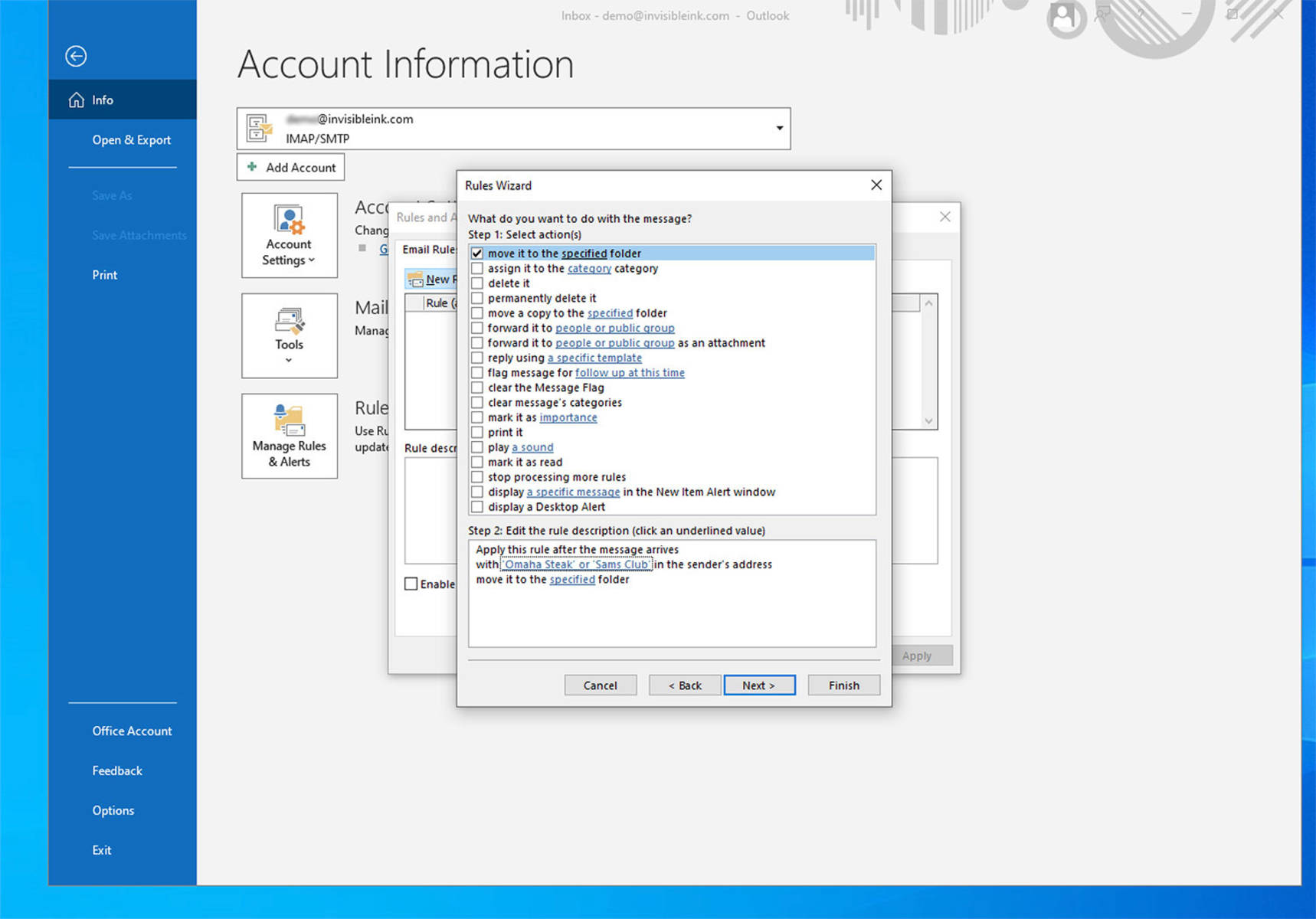
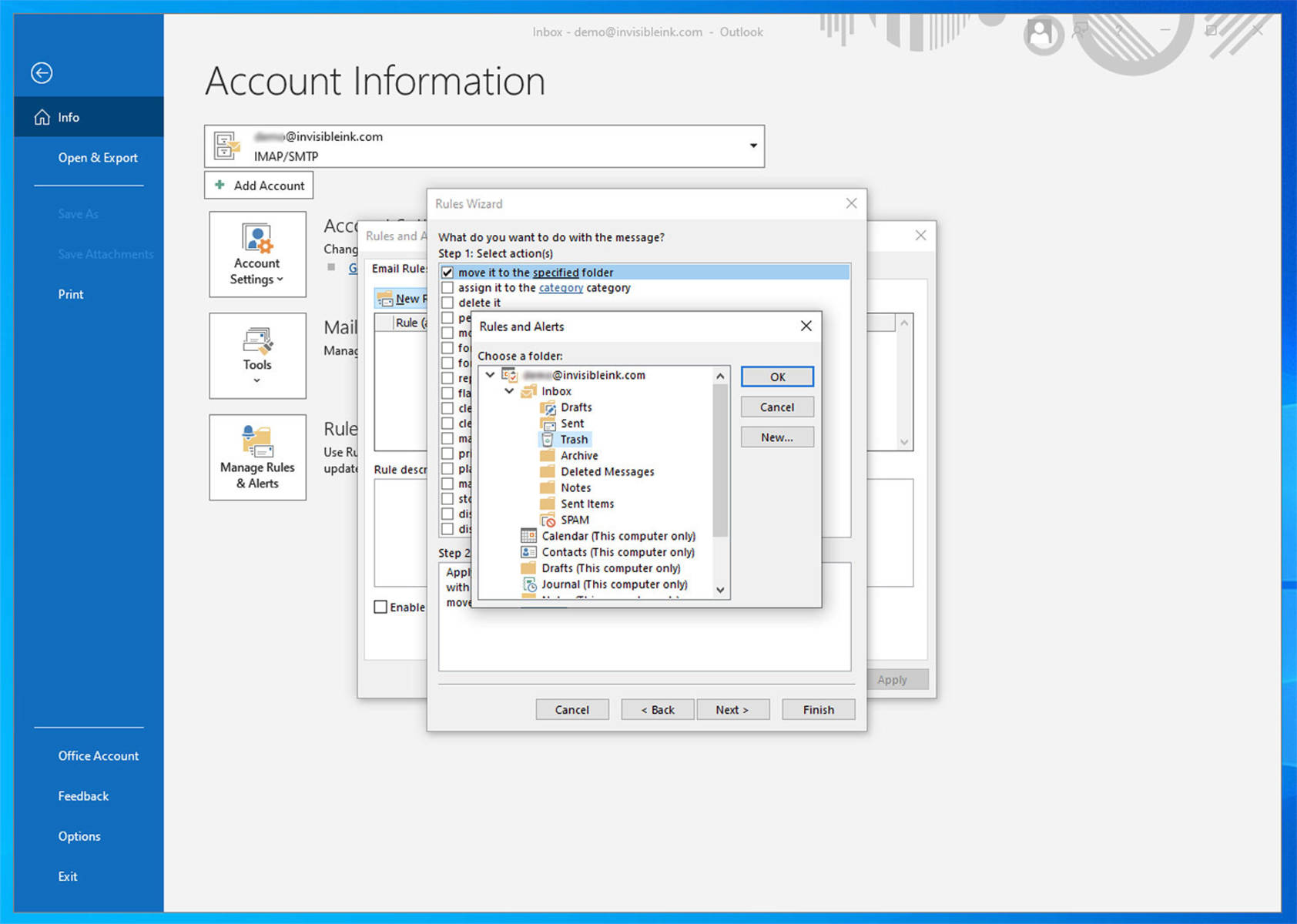
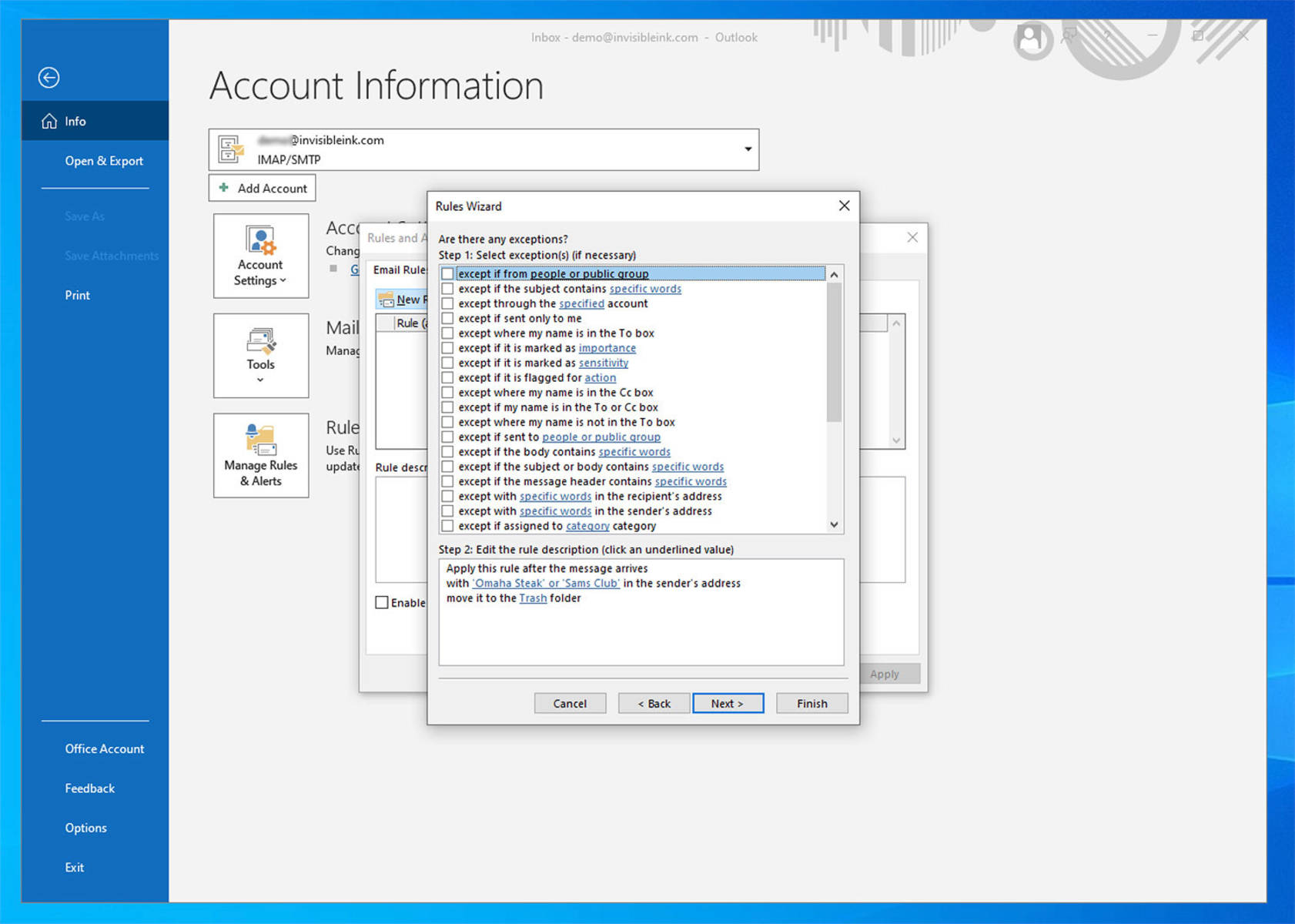
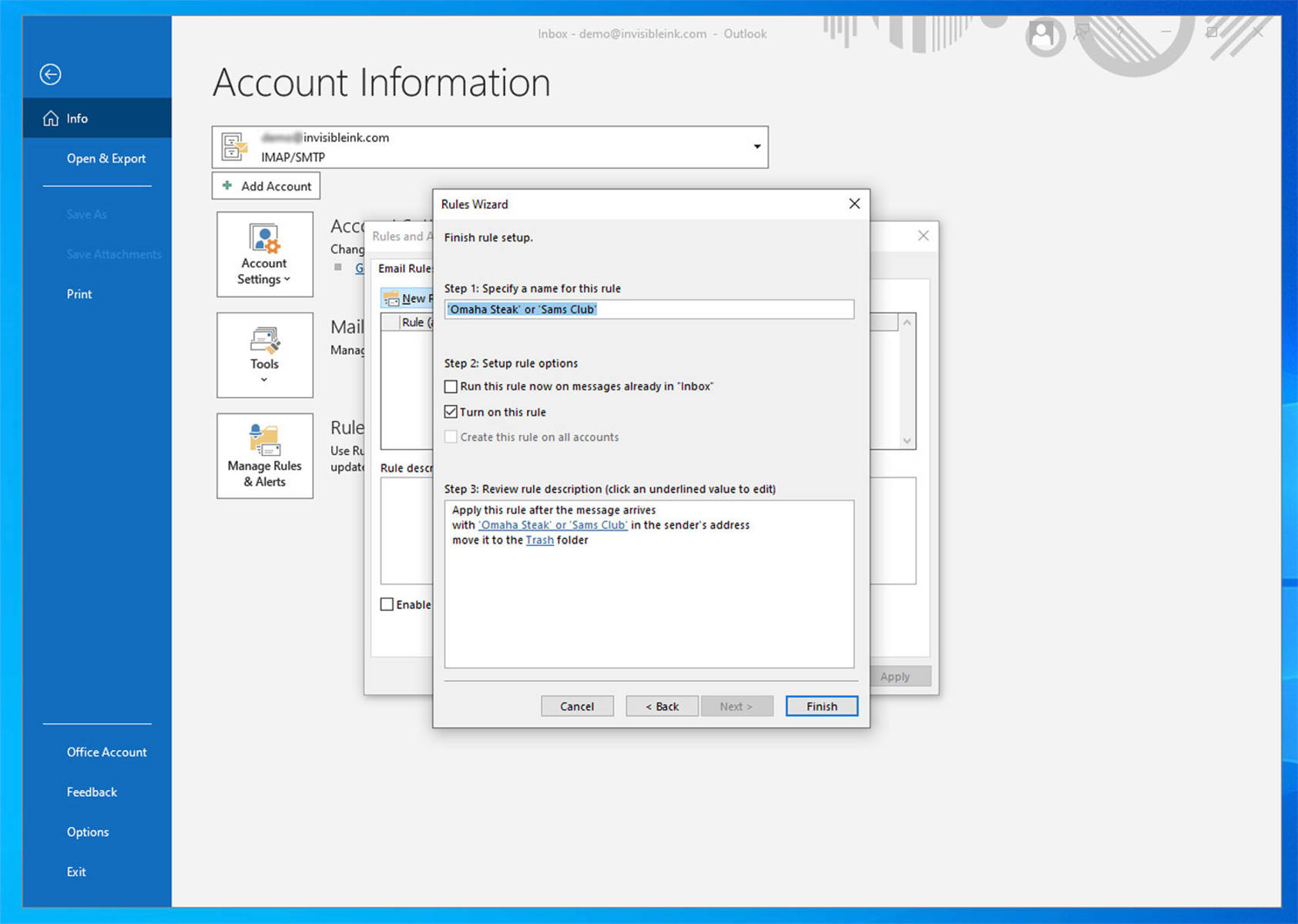
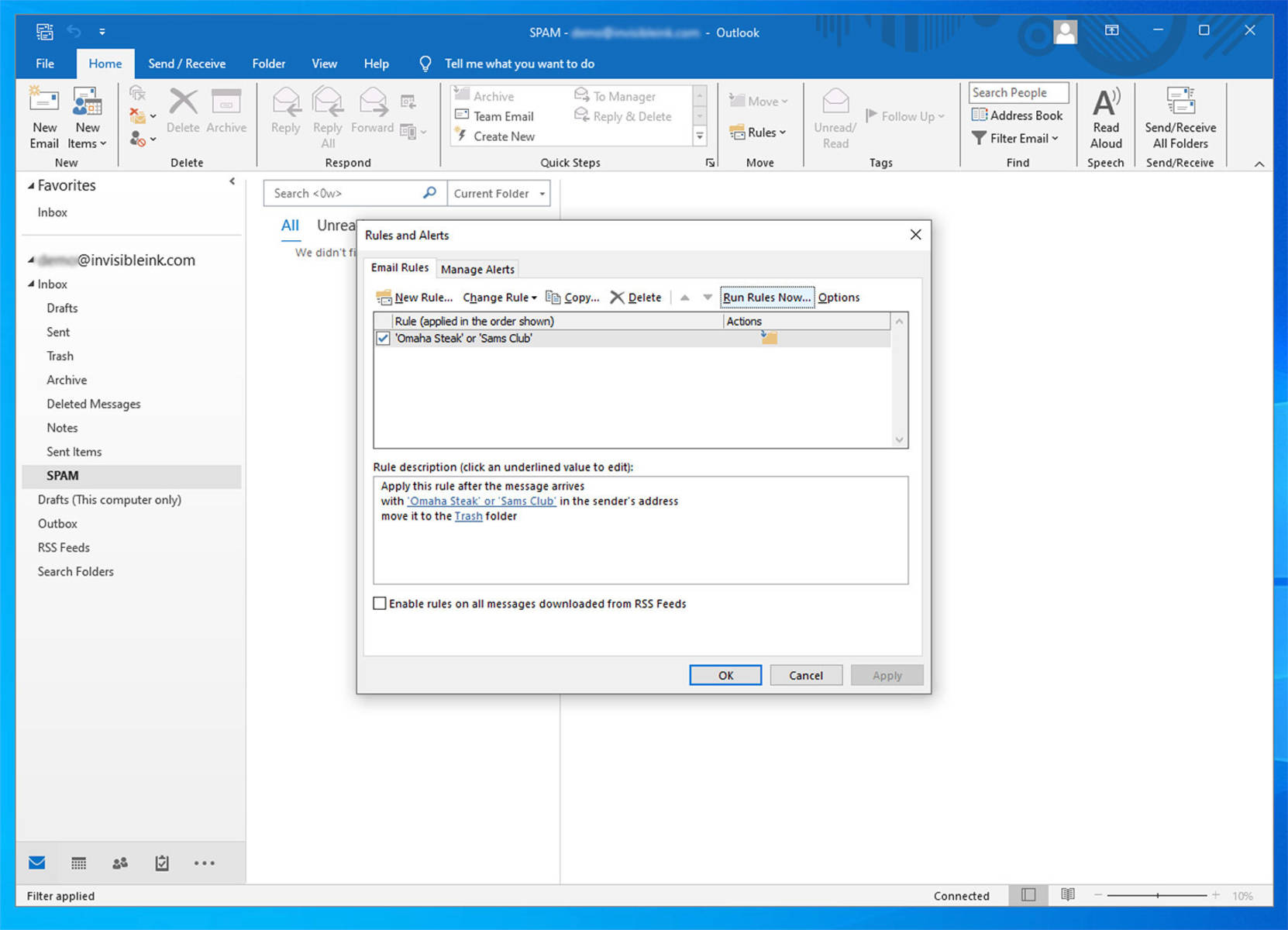
Setting up custom message rules in Outlook can help you find and delete spam messages based on the From name or Subject line and automatically remove them, leaving only a handful of messages for you to review for false positives.
Once you have created the new rule in Outlook, we recommend memorizing the following key command to open the message rules window.
Alt → H → R → R → L
You can also set up a command in the Quick Access Toolbar.
Mac Users: Unfortunately, the Mac version of Outlook does not allow users to create custom mail filters unless they agree to process their messages using the Microsoft cloud. We recommend using the native Mail for MacOS app or Thunderbird.
Related: Optimizing Outlook
Posted April 14, 2026