Automatically Delete Repeat Spam in Thunderbird for Windows

If your spam filter is working correctly, 99% of incoming spam should be automatically flagged and moved to your spam folder. But what if you’re receiving high volumes of spam due to a past data breach or AI-powered spam bots flooding your spam folder? The extra volume of spam makes finding any legitimate emails that were flagged as junk almost impossible.

Setting up custom message rules in Thunderbird can help you find and delete spam messages based on the From name or Subject line and automatically remove them, leaving only a handful of messages for you to review for false positives.

View Instructions

Notes & Tips

Posted April 14, 2026

Details

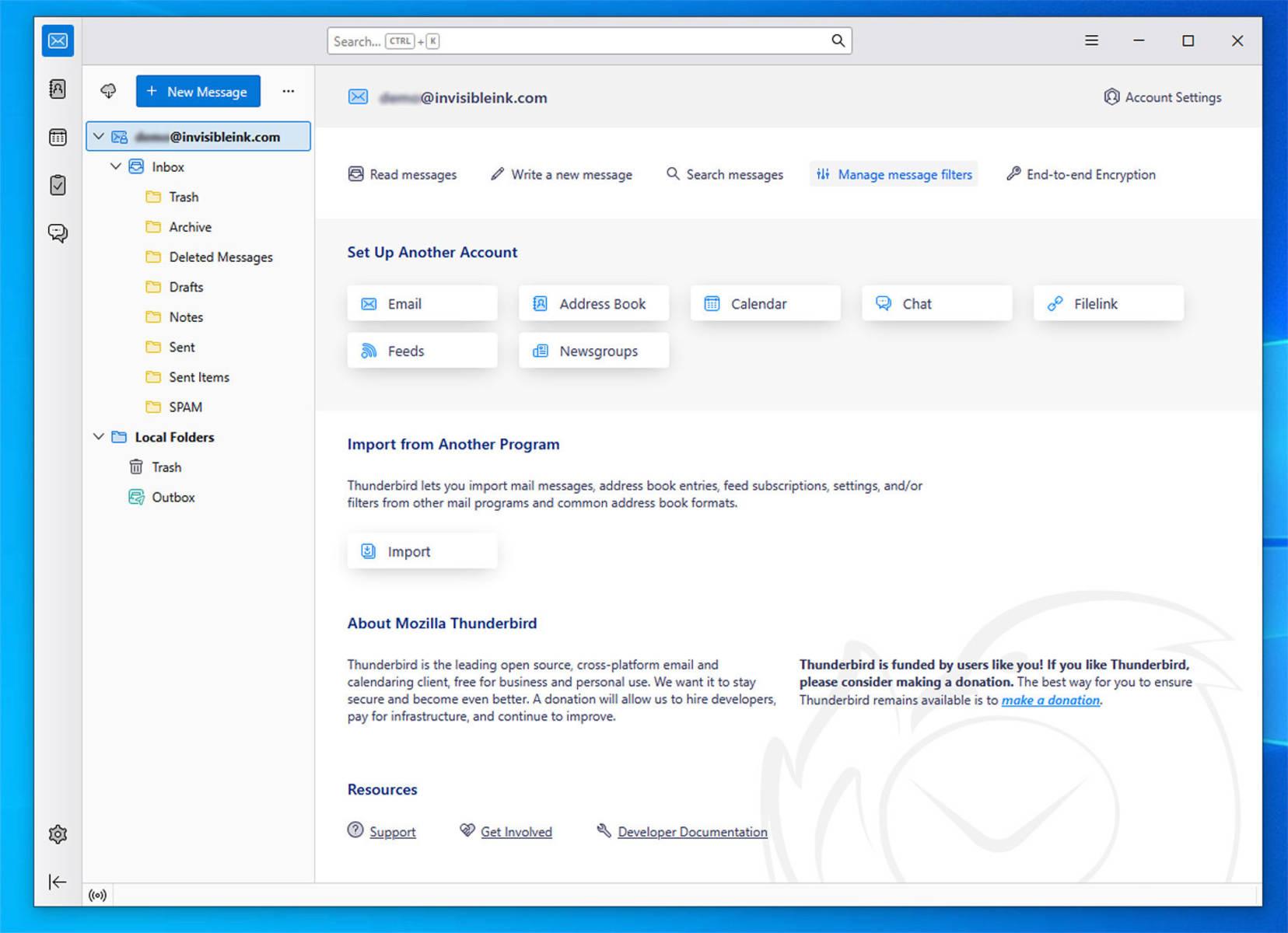
Select your email address in the folder list, then click Manage Message Filters.
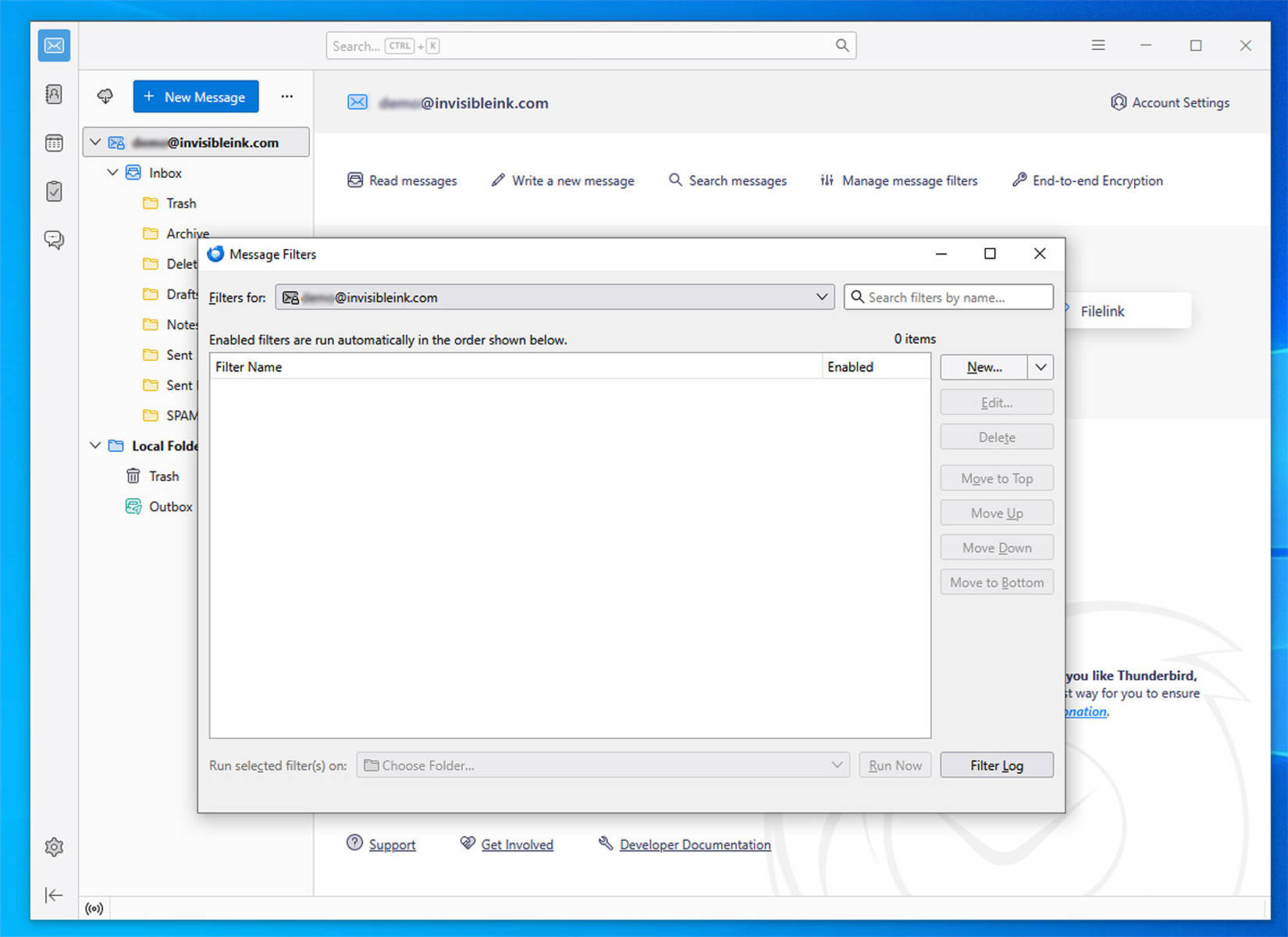
In the Message Filters popup window, click New to create a new filter.
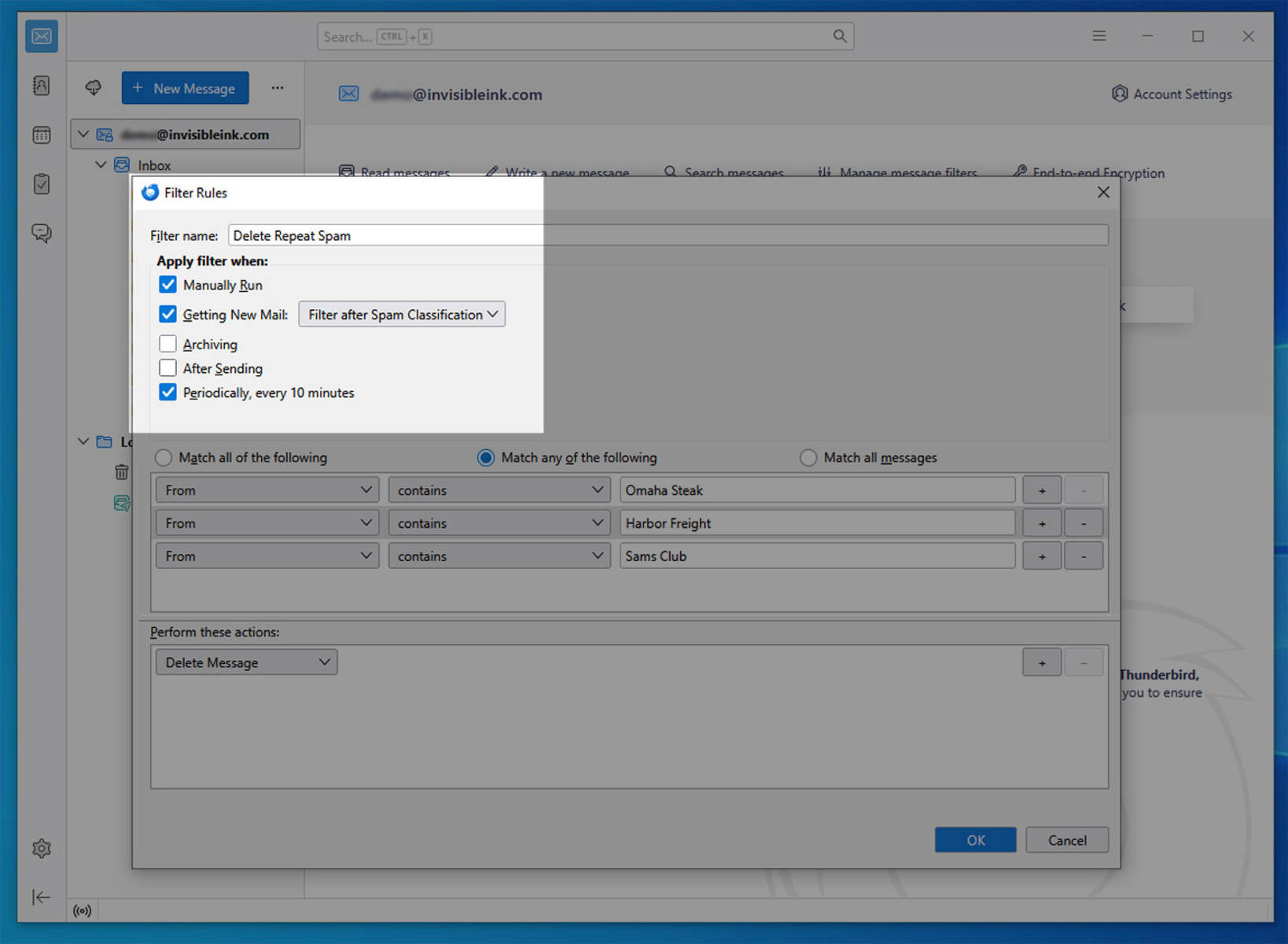
Give your filter a name (e.g. Delete Repeat Spam). Change Getting New Mail selection from “Filter Before Spam Classification” to “Filter After Spam Classification”. To make the filter run automatically, check the box next to “Periodically, every 10 minutes”.
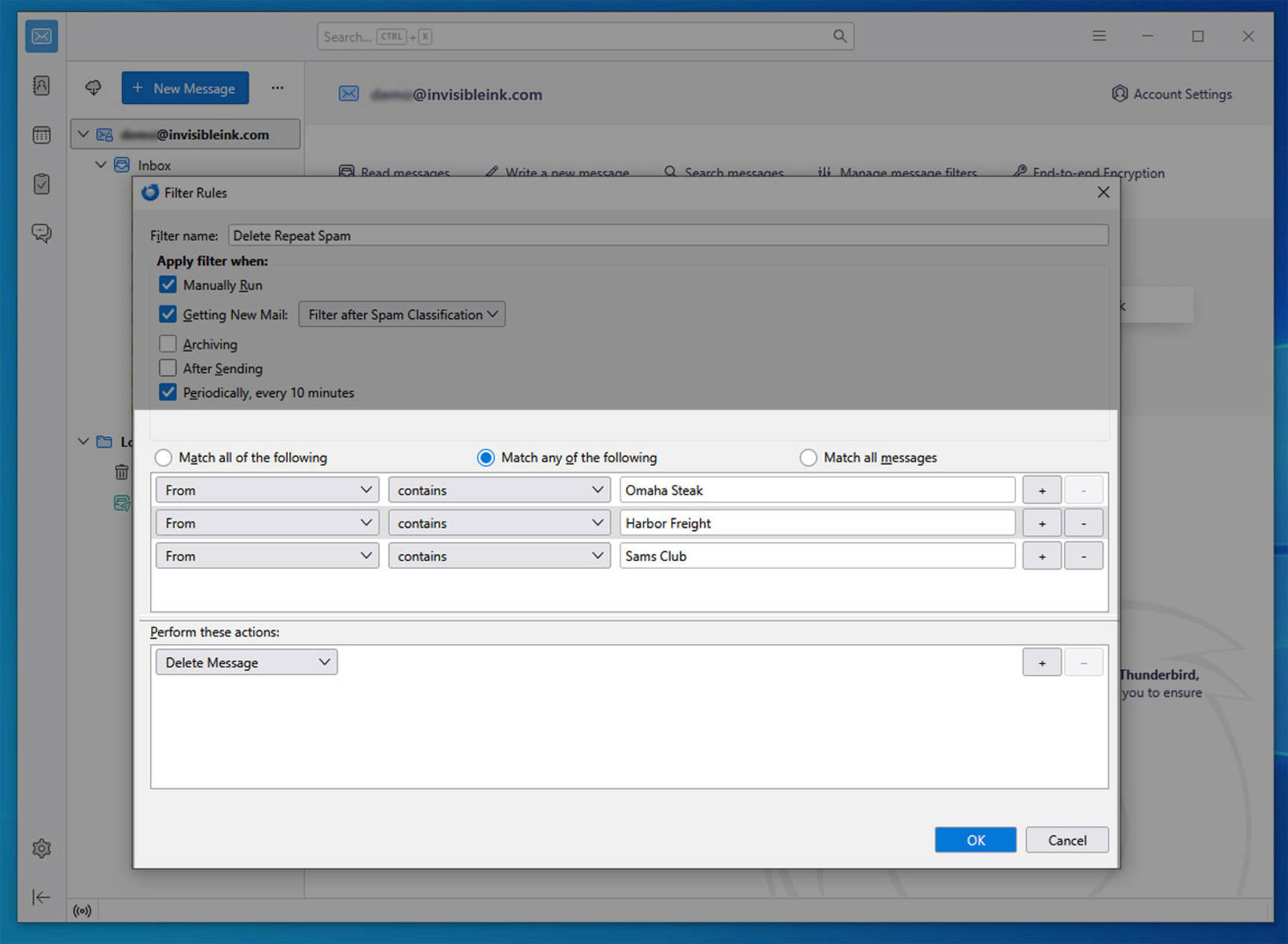
Change “Match all of the following” to “Match any of the following”. To filter mail by the from name, choose From > Contains and enter a keyword phrase. Click the plus button to add additional rules. To filter by Subject, first choose Subject instead of From. Once your filter keywords have been added, choose Delete Message in the Perform these actions section, or move the messages to your trash folder if you still want to be able to access deleted emails. Click OK to save your new filters.
[?]